
GETTING STARTED
Download your first video
From installing the extension to finding the finished file.
1. Install and open a video page
Add StreamCatcher from the Chrome Web Store or Microsoft Edge Add-ons store on your desktop browser. Open the browser’s extensions menu and pin it to the toolbar. If your video page was already open during installation, reload that page so the extension can work with it.
2. Start playback, then open StreamCatcher
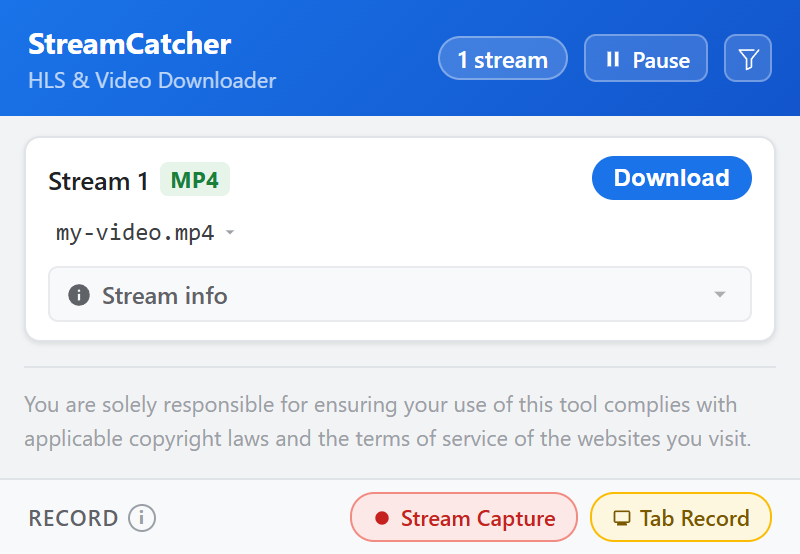
Press play on a video you own or have permission to save. Give it a few seconds to load, then click the StreamCatcher icon. The popup lists detected streams. A page may load several videos, previews, or quality options, so more than one entry can be normal.
3. Use the Download button
Click Download beside the video you want. StreamCatcher opens a separate tab and starts the download there. The source page is where the video comes from; the new tab is your workspace for progress, quality options, and saving. You do not need to paste a link into the homepage.
4. Choose a quality, when available
Some HLS streams offer several resolutions. Higher quality usually needs more space. A lower resolution can be enough for a small screen. Changing the quality starts a new download of that version, so choose early rather than switching near the end. An MP4 file may have only one quality.
5. Finish saving before closing the tab
With automatic saving enabled, the browser saves the finished download. Otherwise, use Save File when it appears. Check your browser’s Downloads panel for the filename and save location. Keep the StreamCatcher tab open until the browser finishes writing the file, then open it to check playback.
If the popup is empty
Check that the video is playing and detection is not paused. Reopen the popup after reloading the source page. Some players do not expose a direct download; the mode guide explains when to try Stream Capture or Tab Record. Protected video and restricted sites are not supported.